Custom fields allow you to capture additional information during the booking process that can be useful for analyzing your processes and creating reports. These fields can be customized and presented to travelers during checkout to prompt them to select an answer or enter a relevant response before booking. For example, a custom field could be a question (e.g., cost center or reason for travel) with 10 (or more) answers a traveler could select from. A custom field can also be made mandatory (i.e., the traveler must select or enter a value before proceeding with the booking). In the update arm API request, the action > required field must be set to true if the traveler response is mandatory.
The legacy custom field V2 operations are now deprecated and will be sunset after 1 July 2027. If you're currently using the V2 endpoints, we recommend you to migrate to the custom fields V3 APIs.
The creating and managing custom fields require atleast one of the following permissions:
| Permission | Context |
|---|---|
COMPANY_MANAGEMENT (read, write, and delete) | Allows the user to create and manage custom fields for the specific companies they manage. |
TMC_MANAGEMENT (read, write, and delete) | Allows the user to create and manage custom fields for all the companies under a specific TMC. |
To create a more granular permission (e.g., an agent with read-only access to the custom fields), see RBAC concepts and RBAC workflows.
The following use cases demonstrate how you might utilize custom fields within a booking workflow.
An administrator wants to gather the information about whether the bookings made by their travelers are for business purposes or for leisure. A custom field could be used to create the question What's the purpose of your booking? and provide that question with two responses (i.e., business and leisure) to choose from. The traveler would be presented with this question at the time of booking and the answer they select will be recorded.
A company invites all its employees to create a round trip air booking for their annual offsite happening in Dubai. Some employees may plan to stay beyond the actual event dates at their own expense to explore the country. The company would like to know if they are extending their stay and want to collect their emergency contact. The administrator can configure the first custom field to ask the question Are you planning to extend your stay? along with two responses Yes and No. If the traveler selects Yes, a second custom field asking the traveler to Enter your emergency contact number is displayed. This custom field can have a simple text box that accepts numerical values as a response. If they select No as their response to the first custom field, they can simply continue to checkout (since they are not traveling beyond the dates of the company event).
To restrict the response to numerical values, set the action > format > userInputFormat > allowedChars field to NUMERIC in the creating a custom field arm API. To make the second custom field appear only when the traveler answers Yes, use the create custom field arm API to set the audiences > predicates > type field to CUSTOM_FIELD_RESPONSE and add reference to the first custom field's id and expected values. See the action and audiences rows in the custom field API parameters table for the full set of options.
The custom fields can be enabled for standard trips, individual bookings within trips (i.e., PNR creation), event templates, and Specialty Desk (SPD) trips or events. In the APIs referred to in this document, the customFieldV3Responses array will be used to capture the custom field information and its subsequent responses selected by the travelers or added automatically based on the configuration.
For example, in the create air PNR API, the request contains a customFieldV3Responses array which holds all the information about the custom fields related to the PNR. This also includes the responses selected by the traveler in the customFieldV3Responses > selectedOptions field.
For SPD trips and SPD events, the event coordinator can enable a custom field that will then appear for travelers during checkout. However, the coordinator can only select from a list of custom fields that were already created and enabled by the administrators.
The section provides more detailed information about specific API parameters used when working with custom field APIs.
| API parameter | Context |
|---|---|
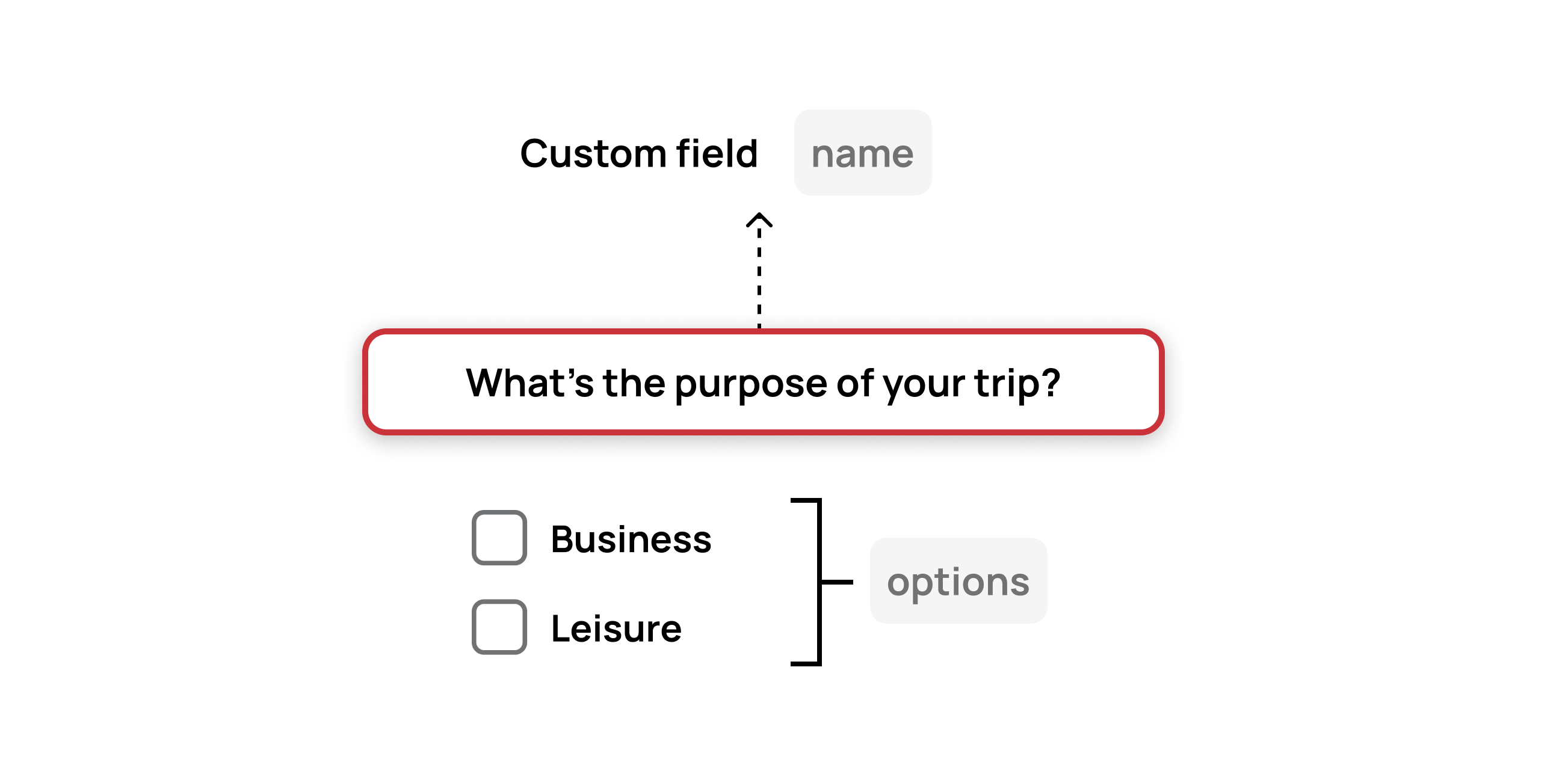
| The name of the custom field. This is the text (or question) displayed to the traveler during the checkout flow whenever the field is shown. For example, some typical names of custom fields might be:
The custom field name will be displayed on the Checkout page, along with the responses the traveler can select from (alternately, the traveler may be prompted to type a response into a text field). |
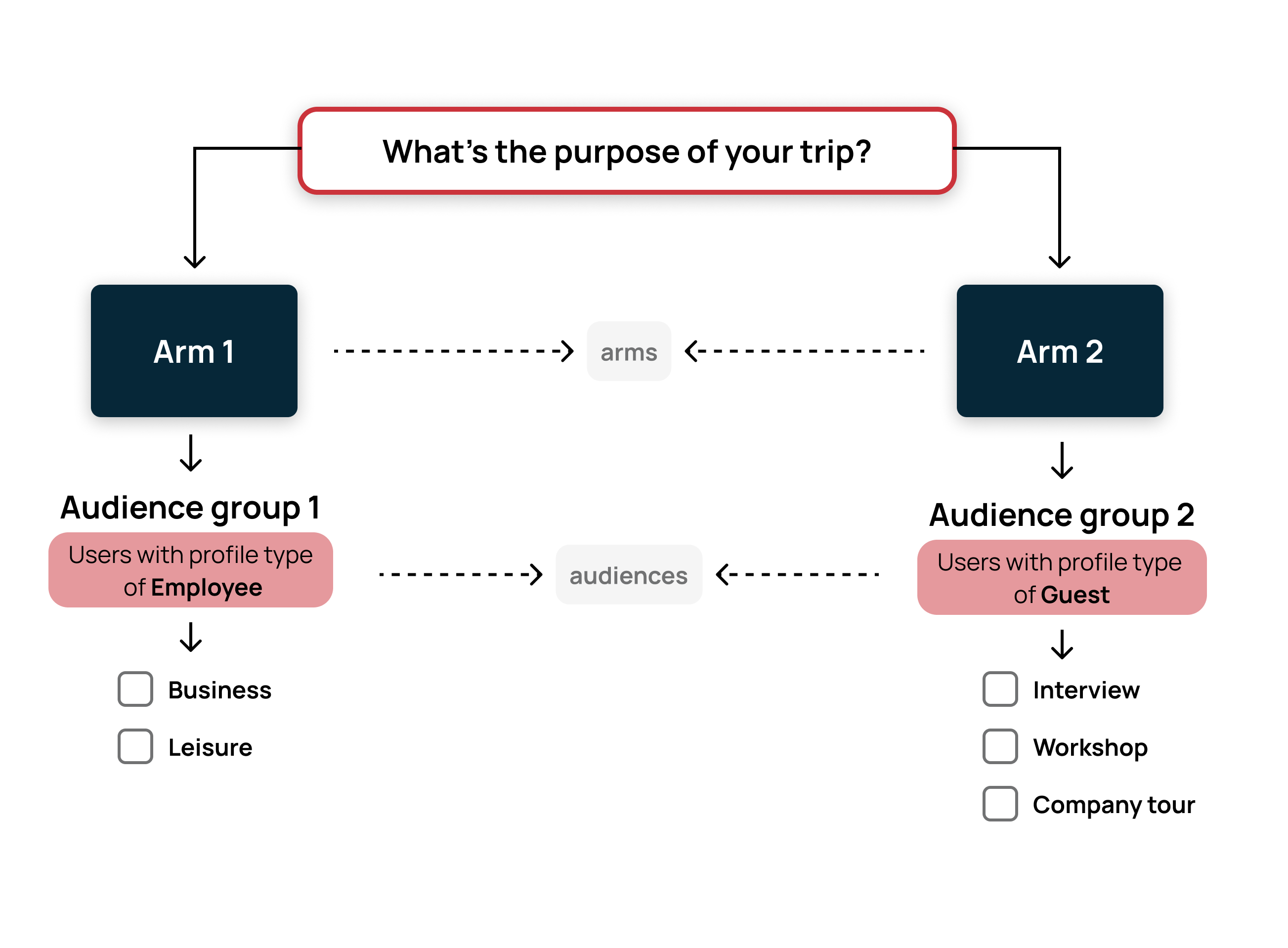
| Arms indicate the different response sets configured for a custom field. For example, assume a company has five subsidiaries and all the company employees are invited to attend an event. You wish to capture the legal entity (i.e., the company subsidiary) of the person making the booking. This is because employees who make their own booking can pay using the company's central card but if an agent makes the booking on behalf of an employee, then the agent has to pay for it and send an invoice to the company's legal entity. In this scenario:
|
| Audiences are the group of users to whom the custom field will be displayed. Audiences can be grouped by any conditions set by the administrators when they're creating a custom field (e.g., travelers making an air booking). When creating an arm you can use the conditional logic of the
then the custom field will be displayed to any user who makes an air booking. The |
| The action object is used to configure the type of responses displayed to the traveler on the Checkout page. When creating an arm, the
|
| Options are the responses displayed for a custom field arm. Based on the action configured, the responses are either auto selected or chosen manually by the traveler. For example, a custom field question Are you planning to extend your stay? can have the options of Yes and No. In this scenario, the Use the update options API endpoint to add options for a custom field arm. The Each option also accepts an optional An option group indicates a list of options that are grouped together using an |
| The Each entry in
The |
The following illustrations explain some of the custom field API parameters explained above: